 orgbit
A useful sandbox needs enough related records to exercise a workflow. For a small sales demo, start with 12 Accounts, give each Account two Contacts, and add one Opportunity. You get 48 records with a relationship structure you can inspect before increasing the volume.
This guide includes the complete Snowfakery recipe. You can generate a local JSON file with the free command-line tool, or edit the recipe and run it from Orgbit Desktop.
Download the sandbox starter recipe ↓
About the examples: screenshots show the real Orgbit interface in its browser preview, populated with fictional orgs and a synthetic recipe. We validated local generation with Snowfakery 4.2.1. No Salesforce records were created for this guide; loading depends on your org’s fields, permissions, and automation.
Start with a small, inspectable dataset
You will need Snowfakery for local generation. To load from Orgbit, the desktop setup also checks Salesforce CLI and CumulusCI. Use a disposable sandbox or scratch org with access to Account, Contact, and Opportunity.
| Object | Recipe count | Resulting records |
|---|---|---|
| Account | 12 | 12 |
| Contact | 2 per Account | 24 |
| Opportunity | 1 per Account | 12 |
| Total | 48 |
The Account names begin with Orgbit Demo Account, so you can find this tutorial’s data later. Contact names are generated, and email addresses use example.com. The recipe does not copy production records or read an existing Salesforce org.
The date and Opportunity stage are explicit. Change CloseDate if your scenario needs another date, and confirm that Prospecting is valid for the target org’s sales process.
Create the recipe in Orgbit
Open Recipes → New recipe, name it Sandbox starter, and replace the starting YAML with the downloaded file’s contents. Orgbit saves recipe edits automatically; the generated local filename can differ from the download’s name.
Here is the full recipe:
# Synthetic Salesforce demo data. No existing org data is read.
# 12 Accounts + 24 Contacts + 12 Opportunities = 48 records.
- object: Account
  count: 12
  fields:
    Name: Orgbit Demo Account ${{id}}
    Description: Synthetic Orgbit tutorial data
  friends:
    - object: Contact
      count: 2
      fields:
        FirstName:
          fake: FirstName
        LastName:
          fake: LastName
        Email: contact-${{id}}@example.com
        AccountId:
          reference: Account
    - object: Opportunity
      count: 1
      fields:
        Name: ${{Account.Name}} - Starter deal
        StageName: Prospecting
        CloseDate: 2026-12-15
        Amount: 12500
        AccountId:
          reference: Account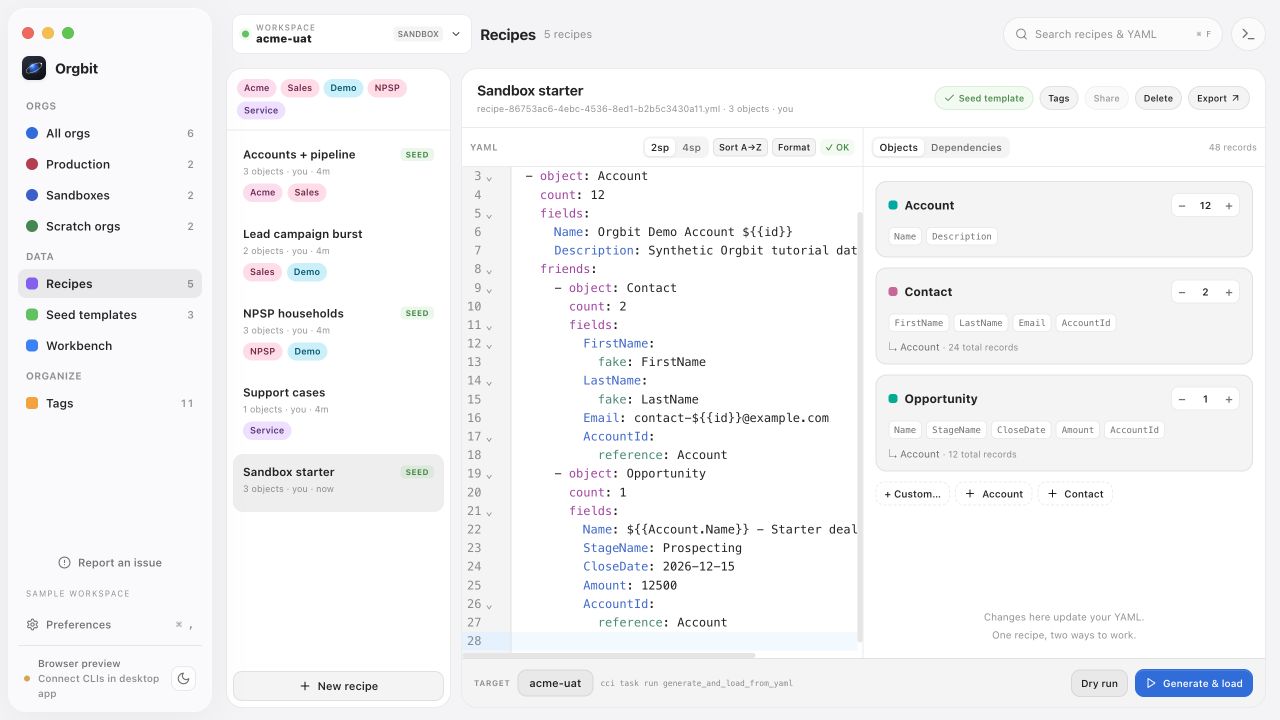
Check the relationships and counts
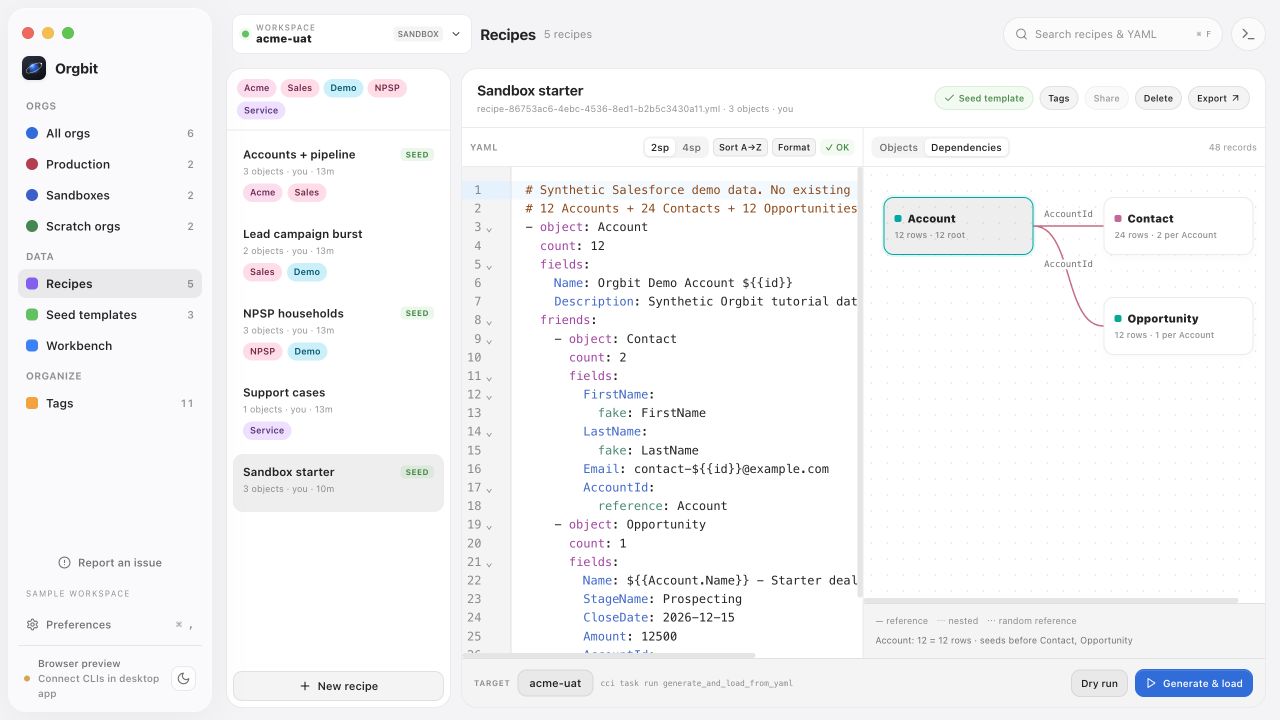
The Contact and Opportunity definitions live under the Account’s friends block. Each time an Account is generated, that block generates its related records. Their AccountId fields reference the parent Account.
Open Dependencies to inspect that structure. The recipe has three object definitions, but generates 48 records. A Contact count of 2 means two for each Account, not two for the entire run.
To scale this recipe to 400 records, change the Account count to 100: 100 Accounts + 200 Contacts + 100 Opportunities. Keep the first run small enough to inspect individual records.
Generate locally before loading
In the desktop app, Dry run executes Snowfakery and reports generated counts in the CLI log. For this self-contained recipe it does not connect to Salesforce. The browser preview cannot execute CLI commands.
You can also validate the downloaded recipe directly:
snowfakery sandbox-starter.recipe.yml \
  --output-format json \
  --output-file sandbox-starter.json
Our local run produced exactly 12 Accounts, 24 Contacts, and 12 Opportunities. Every Contact and Opportunity referenced an Account in that output. The JSON uses local numeric identifiers; these are not Salesforce record IDs.
A successful dry run checks data generation. It does not validate Salesforce picklists, required custom fields, permissions, or validation rules. Add any fields your org requires before attempting a load. The generated contact names can change between runs even though the recipe’s counts remain the same.
Choose the sandbox and load once
In Orgbit Desktop, select the intended sandbox in the workspace selector and check the TARGET beside Generate & load. CumulusCI handles loading the generated records into that environment.
Review the sandbox’s flows and integrations before loading: synthetic records can still trigger automation. Run Generate & load once, inspect the log, then verify the data with SOQL.
This is an insert recipe. Repeating it can add another batch with the same demo names; it does not reset the sandbox or update a previous batch. If a load fails partway through, inspect the error and existing records before rerunning.
Keep the recipe for your next environment
Choose Make seed template to include the recipe under Seed templates. Use Export to keep a YAML copy with the project’s setup notes. The template stores the recipe; it does not authorize access to another Salesforce org.
For a reusable team example, record the expected counts, required fields, valid stages, and cleanup approach alongside the YAML. If you work across clients, the multiple-org workflow helps keep the target environment explicit.
For more recipe syntax and output options, see the Snowfakery documentation and its Salesforce integration guide.